Git is a free, open source distributed version control system tool designed to handle everything from small to very large projects with speed and efficiency. It was created by Linus Torvalds in 2005 to develop Linux Kernel. Git has the functionality, performance, security and flexibility that most teams and individual developers need. It also serves as an important distributed version-control for Devops tool.
Why Git Came Into Existence?
We all know “Necessity is the mother of all inventions”. And similarly Git was also invented to fulfill certain necessities that the developers faced before Git. So, let us take a step back to learn all about Version Control Systems (VCS) and how Git came into existence.
Version Control is the management of changes to documents, computer programs, large websites and other collection of information.
There are two types of VCS:
- Centralized Version Control System (CVCS)
- Distributed Version Control System (DVCS)
Centralized VCS
Centralized version control system (CVCS) uses a central server to store all files and enables team collaboration. It works on a single repository to which users can directly access a central server.
Please refer to the diagram below to get a better idea of CVCS:
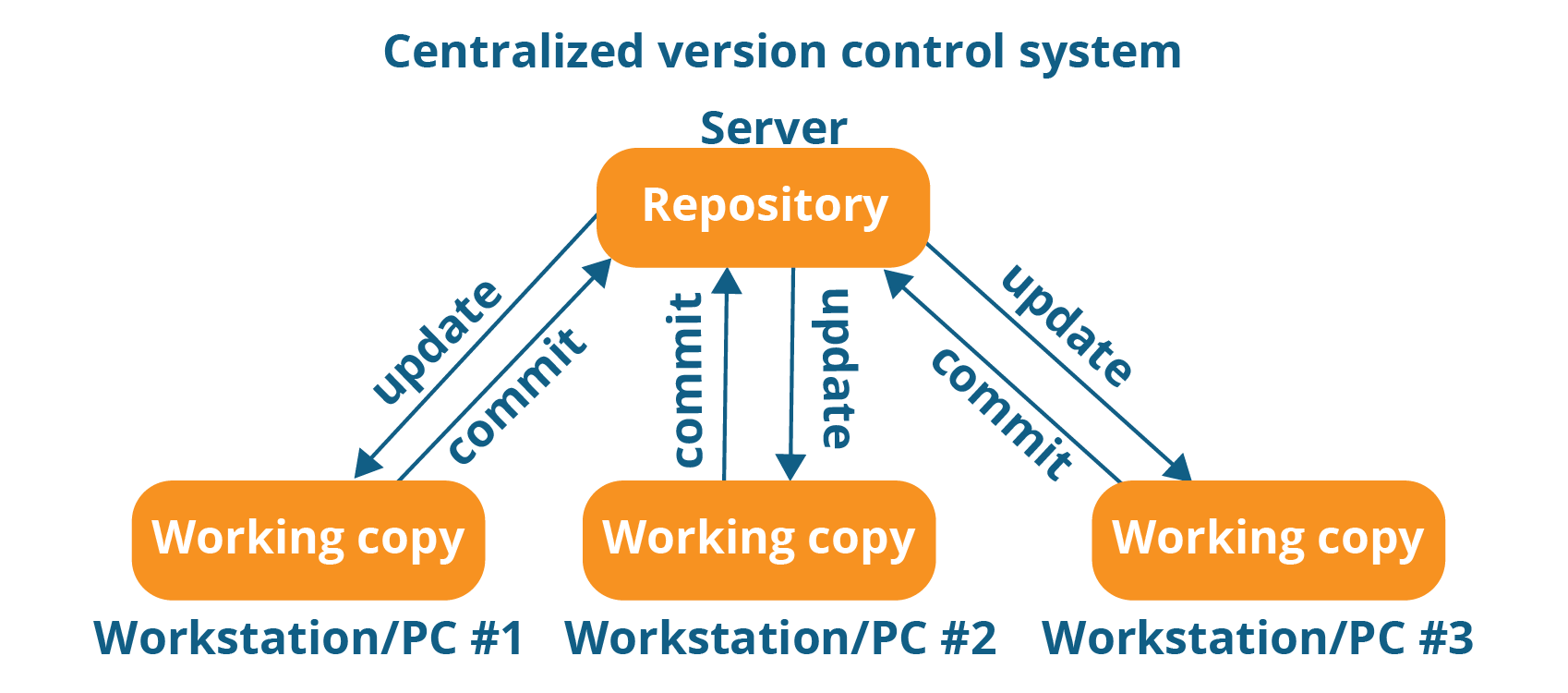
The repository in the above diagram indicates a central server that could be local or remote which is directly connected to each of the programmer’s workstation.
Every programmer can extract or update their workstations with the data present in the repository or can make changes to the data or commit in the repository. Every operation is performed directly on the repository.
Even though it seems pretty convenient to maintain a single repository, it has some major drawbacks. Some of them are:
- It is not locally available; meaning you always need to be connected to a network to perform any action.
- Since everything is centralized, in any case of the central server getting crashed or corrupted will result in losing the entire data of the project.
This is when Distributed VCS comes to the rescue.
Distributed VCS
These systems do not necessarily rely on a central server to store all the versions of a project file.
In Distributed VCS, every contributor has a local copy or “clone” of the main repository i.e. everyone maintains a local repository of their own which contains all the files and metadata present in the main repository.
You will understand it better by referring to the diagram below:
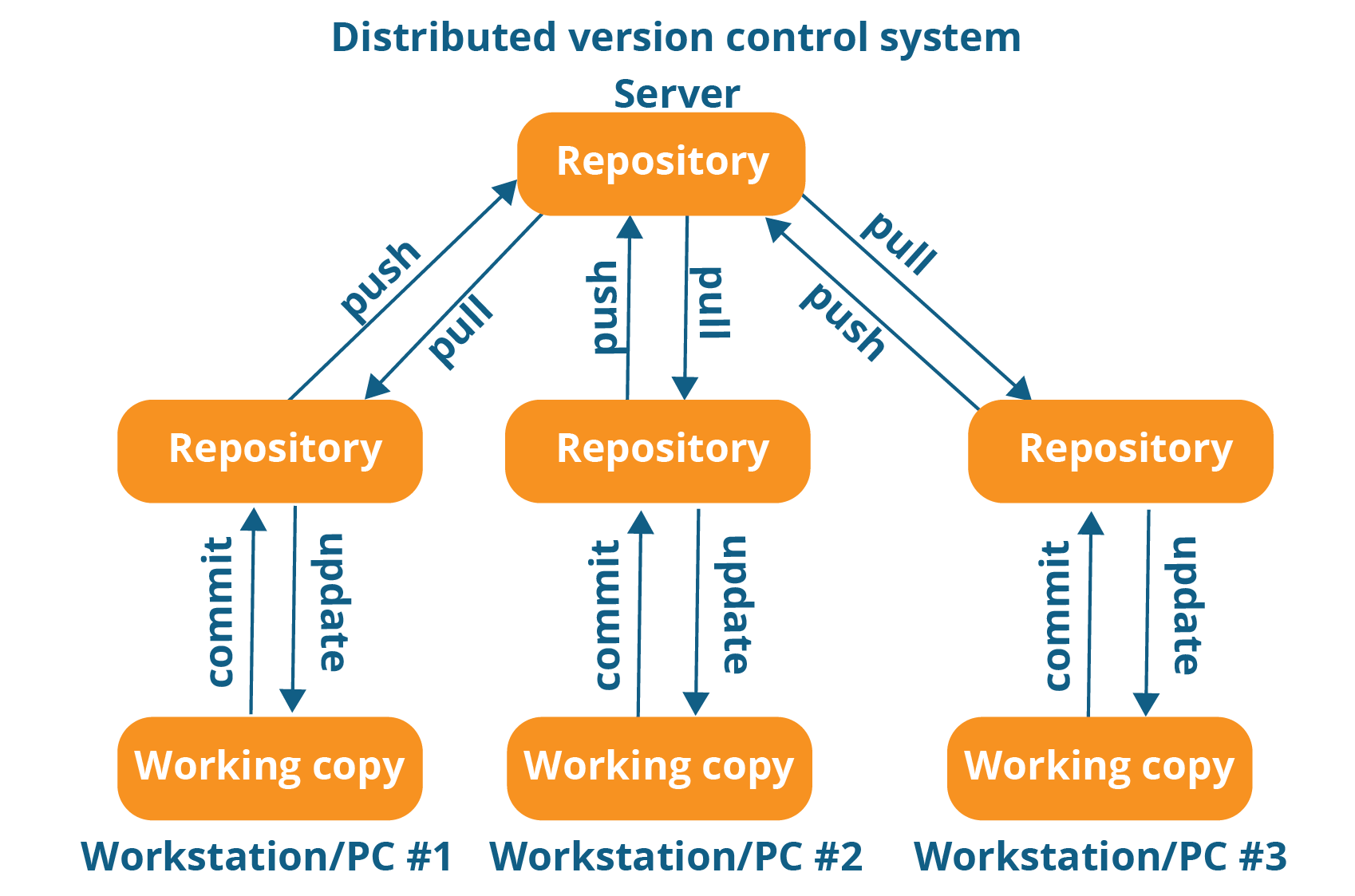
As you can see in the above diagram, every programmer maintains a local repository on its own, which is actually the copy or clone of the central repository on their hard drive. They can commit and update their local repository without any interference.
They can update their local repositories with new data from the central server by an operation called “pull” and affect changes to the main repository by an operation called “push” from their local repository.
The act of cloning an entire repository into your workstation to get a local repository gives you the following advantages:
- All operations (except push & pull) are very fast because the tool only needs to access the hard drive, not a remote server. Hence, you do not always need an internet connection.
- Committing new change-sets can be done locally without manipulating the data on the main repository. Once you have a group of changesets ready, you can push them all at once.
- Since every contributor has a full copy of the project repository, they can share changes with one another if they want to get some feedback before affecting changes in the main repository.
- If the central server gets crashed at any point of time, the lost data can be easily recovered from any one of the contributor’s local repositories.
Top 20 Git Commands
git config
Usage: git config –global user.name “[name]”
Usage: git config –global user.email “[email address]”
This command sets the author name and email address respectively to be used with your commits.
git init
Usage: git init [repository name]
This command is used to start a new repository.
git clone
Usage: git clone [url]
This command is used to obtain a repository from an existing URL.
git add
Usage: git add [file]
This command adds a file to the staging area.
Usage: git add *
This command adds one or more to the staging area.
git commit
Usage: git commit -m “[ Type in the commit message]”
This command records or snapshots the file permanently in the version history.
Usage: git commit -a
This command commits any files you’ve added with the git add command and also commits any files you’ve changed since then.
git diff
Usage: git diff
This command shows the file differences which are not yet staged.
Usage: git diff –staged
This command shows the differences between the files in the staging area and the latest version present.
Usage: git diff [first branch] [second branch]
This command shows the differences between the two branches mentioned.
git reset
Usage: git reset [file]
This command unstages the file, but it preserves the file contents.
Usage: git reset [commit]
This command undoes all the commits after the specified commit and preserves the changes locally.
Usage: git reset –hard [commit]
This command discards all history and goes back to the specified commit.
git status
Usage: git status
This command lists all the files that have to be committed.
git rm
Usage: git rm [file]
This command deletes the file from your working directory and stages the deletion.
git log
Usage: git log
This command is used to list the version history for the current branch.
Usage: git log –follow[file]
This command lists version history for a file, including the renaming of files also.
git show
Usage: git show [commit]
This command shows the metadata and content changes of the specified commit.
git tag
Usage: git tag [commitID]
This command is used to give tags to the specificed commit.
git branch
Usage: git branch
This command lists all the local branches in the current repository.
Usage: git branch [branch name]
This command creates a new branch.
Usage: git branch -d [branch name]
This command deletes the feature branch.
git checkout
Usage: git checkout [branch name]
This command is used to switch from one branch to another.
Usage: git checkout -b [branch name]
This command creates a new branch and also switches to it.
git merge
Usage: git merge [branch name]
This command merges the specified branch’s history into the current branch.
git remote
Usage: git remote add [variable name] [Remote Server Link]
This command is used to connect your local repository to the remote server.
git push
Usage: git push [variable name] master
This command sends the committed changes of master branch to your remote repository.
Usage: git push [variable name] [branch]
This command sends the branch commits to your remote repository.
Usage: git push –all [variable name]
This command pushes all branches to your remote repository.
Usage: git push [variable name] :[branch name]
This command deletes a branch on your remote repository.
git pull
Usage: git pull [Repository Link]
This command fetches and merges changes on the remote server to your working directory.
git stash
Usage: git stash save
This command temporarily stores all the modified tracked files.
Usage: git stash pop
This command restores the most recently stashed files.
Usage: git stash list
This command lists all stashed changesets.
Usage: git stash drop
This command discards the most recently stashed changeset.
I hope this helps out in your regular routine while working with git .Please comment down incase missed out any most usage command.
 Explore Automation Libraries